How to host a Rust server
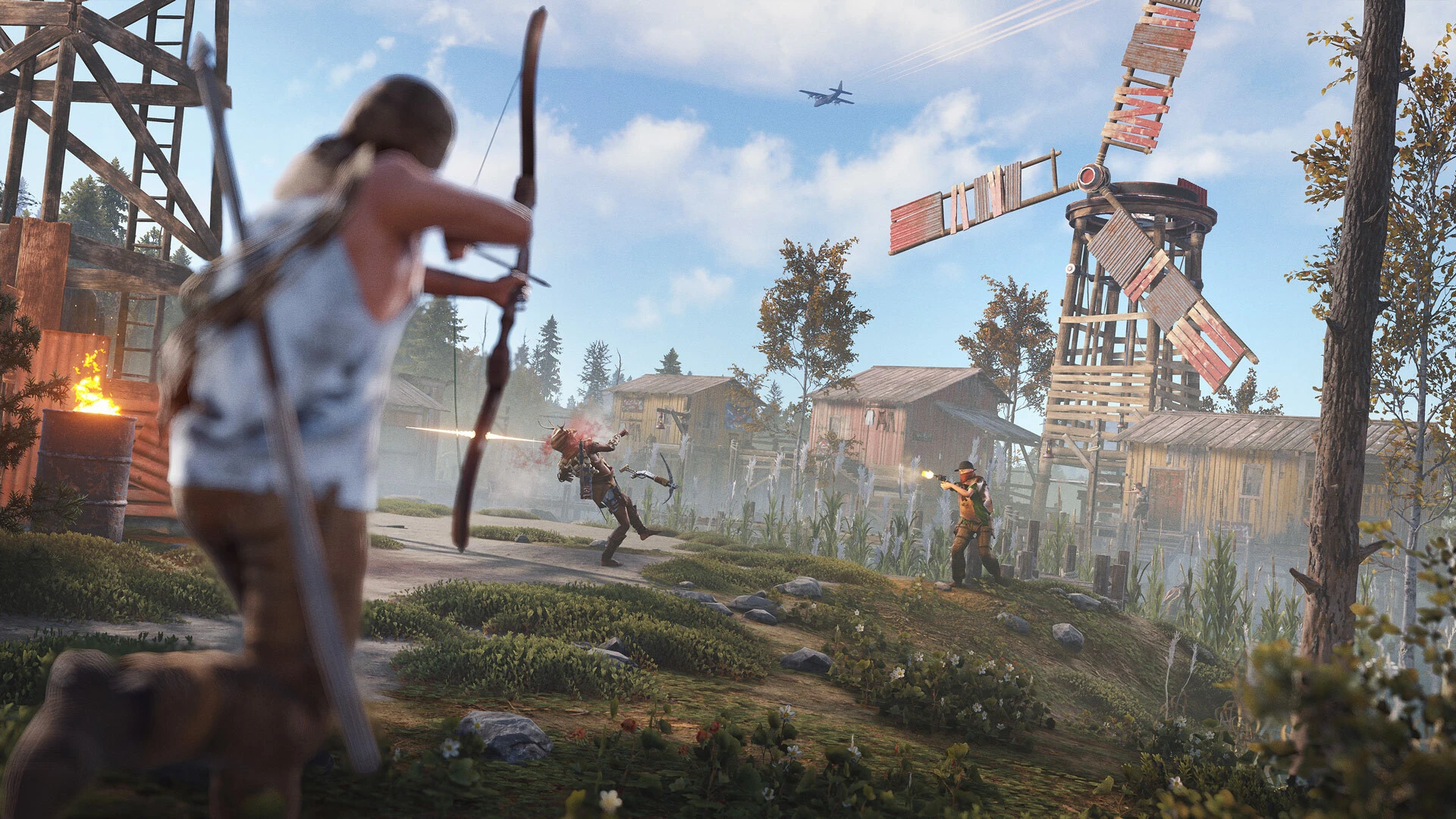
Most of what follows is unremarkable if you have run a Rust server before — except for two things that have quietly changed and that most guides still get wrong. Rust no longer answers the old remote-console protocol, and the Rust+ companion app needs a port number above 10000 or it will never connect, however carefully you configure it.
What does a Rust server actually need?
Allow around 12 GB of disk per server. A clean install is roughly half that, and the headroom matters more than it looks: game updates, world saves that grow with how much your players build, and a modding framework if you add one all land in the same place. Servers that fill up mid-wipe almost always did this sum once, at install, and never again.
Rust runs on both Linux and Windows, installed through Steam either way. One setting deserves more attention than it usually gets: which branch of the game you install. Steam remembers whichever branch a server used last, so a server put onto a test branch once will quietly stay there through every future update unless something names the branch again.
Which ports does Rust need open?
Four, not one. Three are reserved as a consecutive block at install, and the companion port is reserved separately.
| Port | What it does |
|---|---|
| Game | The one players connect to. It becomes 28015 when the server has an IP address to itself, since there is nothing to clash with. |
| Query | What puts you in the in-game server browser, and what a Steam connect link actually uses — not the game port. Get this wrong and your server runs perfectly while nobody can find it. |
| Console | Remote administration. This is the one that has changed. |
| Companion | The Rust+ phone app. Must be 10000 or higher, for reasons that are entirely Facepunch’s. |
The companion service only reaches ports numbered 10000 or above. A lower one starts up perfectly, reports no error, and simply never pairs — so what you see is players telling you the app is broken while every check you run says the server is fine. If the ports available on your machine sit below 10000, Rust+ cannot work there, and no amount of configuration will change that.
How to install it
Rust installs through Steam’s command-line tool on either Linux or Windows. The server is a free application in its own right, so the account doing the installing does not need to own the game.
- Install Steam’s command-line tool on the machine that will run the server, and let it update itself once before you do anything else.
- Install the Rust dedicated server into its own empty directory, using an anonymous login. It is a large download — leave it alone until it finishes rather than interrupting and resuming.
- Name the branch explicitly. Steam remembers whichever branch a server used last, so unless you say which one you want on every install, a server put onto a test branch once will quietly stay there forever.
- Reserve your four ports before first launch — game, query, console and companion — and make sure the companion port is 10000 or higher. Retrofitting that one after players have paired their phones is painful.
- Decide the server identity. This is a short name Rust uses for the folder your world, config and player data live in. Choose it deliberately and write it down: change it later and the server will look brand new, because it is reading a different folder.
- Set the map before the first start. World size and seed decide the map, and they are fixed for that wipe. Changing either means a new world, so agree them with your players first.
- Start it once and let it finish. The first launch generates the map and takes noticeably longer than later ones. It is working even when it looks like nothing is happening.
- Check it appears in the server browser, not just that you can connect directly. Those are different tests, and only the browser one proves your query port is right.
Set the console password and take a copy of the server folder while it is still empty. A clean baseline is the fastest way to recover from a bad mod or a mistyped setting in week one, and it costs nothing to take now.
Why won’t my RCON tool connect?
Almost certainly because it is speaking the old language. Rust changed how its remote console works, and the protocol most admin tools were built on no longer answers.
What makes this so confusing is that nothing looks broken. The connection is accepted, and then nothing comes back — no rejection, no error, just silence. So the natural conclusion is that you have the password wrong, and you can spend a long evening being wrong about that.
- If your admin tool has stopped working, it is out of date rather than misconfigured. Check when it was last updated before you change anything on the server.
- The console password is part of the connection itself, so the console port is worth putting behind a firewall rather than relying on a strong password alone.
Rust limits how fast tools can reconnect
Open a handful of console connections in quick succession and Rust starts refusing them for a few seconds. One connection used for many commands is never affected — but a tool that opens a fresh connection for every command will fail intermittently, and it will do it worst on wipe night when you are issuing the most commands.
How to configure it
- Map and seed, world size, player limit, description and server website are the settings people actually change.
- Set the save interval deliberately. It is the single setting that decides how much your players lose if a server dies unexpectedly.
- Be wary of any panel showing settings that silently revert on restart, because something overwrites them at startup. A field that does nothing is worse than no field.
How do I schedule a wipe?
A wipe is a scheduled task like any other. The sequence is stop, delete the matching files, start again — and the interesting part is what it deliberately does not delete.
| Wipe | Clears | Keeps |
|---|---|---|
| Map | The world and everything built in it | Blueprints, and app pairings |
| Blueprint | What players have learned to craft | The world, and app pairings |
| Either | — | Rust+ app pairings, always |
That last row is the one worth insisting on. Players pair their phone to your server once, and a wipe that clears those pairings forces every one of them to re-pair in person, in game. Nobody notices this when they build the wipe script — they notice it three hours into the busiest night of the month, as the tickets arrive.
Which modding framework should I use?
Oxide and Carbon are the two options, and you can only have one. Pick before you build a plugin list, because moving between them later means revisiting every plugin you installed.
The part worth knowing is what happens on update day. When an update ships, your modding framework has not caught up yet — and a modded server that updates the instant the game does is a modded server that is down until the framework follows. The right behaviour is to hold the update until the framework is ready, then take both together.
A wipe that unpairs every player is a wipe nobody scheduled on purpose.
Written from running Rust servers ourselves and checked against current builds in August 2026. Rust changes often, particularly around the remote console and the companion app — if something here no longer matches what you are seeing, tell us and we will recheck it. More on running a fleet in the documentation.
Building GameDash at Schokker IT — the game server control panel we always wished existed. Writes about infrastructure automation, the SDK and running game servers at scale.